
Launch your first campaign
Follow the four composer steps: audience, message, timing, then final review.
Before you start
An active entitlement, sufficient available allowance, a ready Page audience and a prepared message.
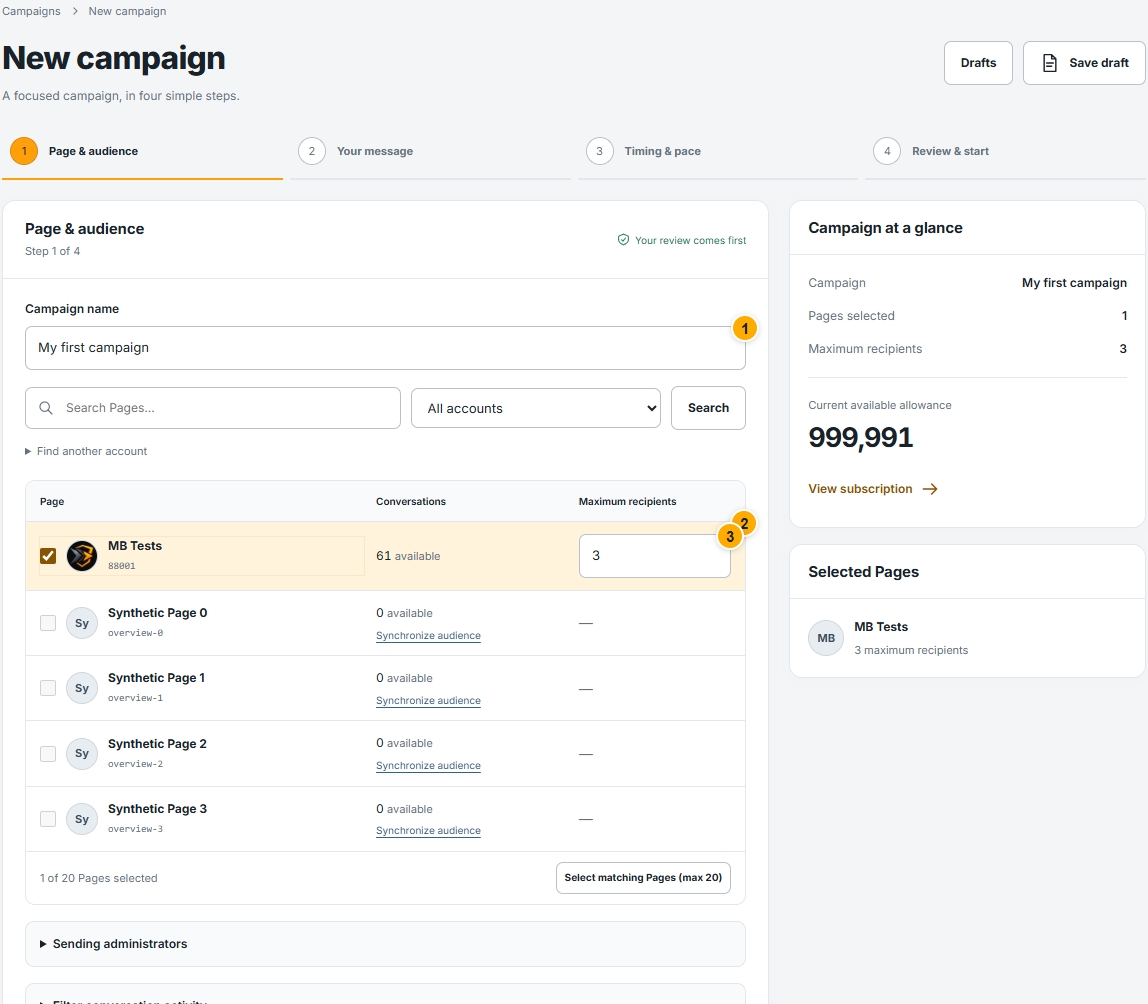
Page and audience
 Screenshot from a demo account · Open full size
- 1
Enter a campaign name you can recognize in results. Select the correct Page and check its available conversations.
- 2
Set the maximum recipients for each selected Page. This is a cap, not a guarantee that this many people will be eligible.
- 3
For your first run, use a small suitable audience. Review optional administrator and activity-date filters, then select Continue.
Expected result
The summary reflects your selected Pages and recipient caps.
Selecting several Pages creates separate Page campaigns in one group; each keeps its own audience and result.
Choose the message
 Screenshot from a demo account · Open full size
- 1
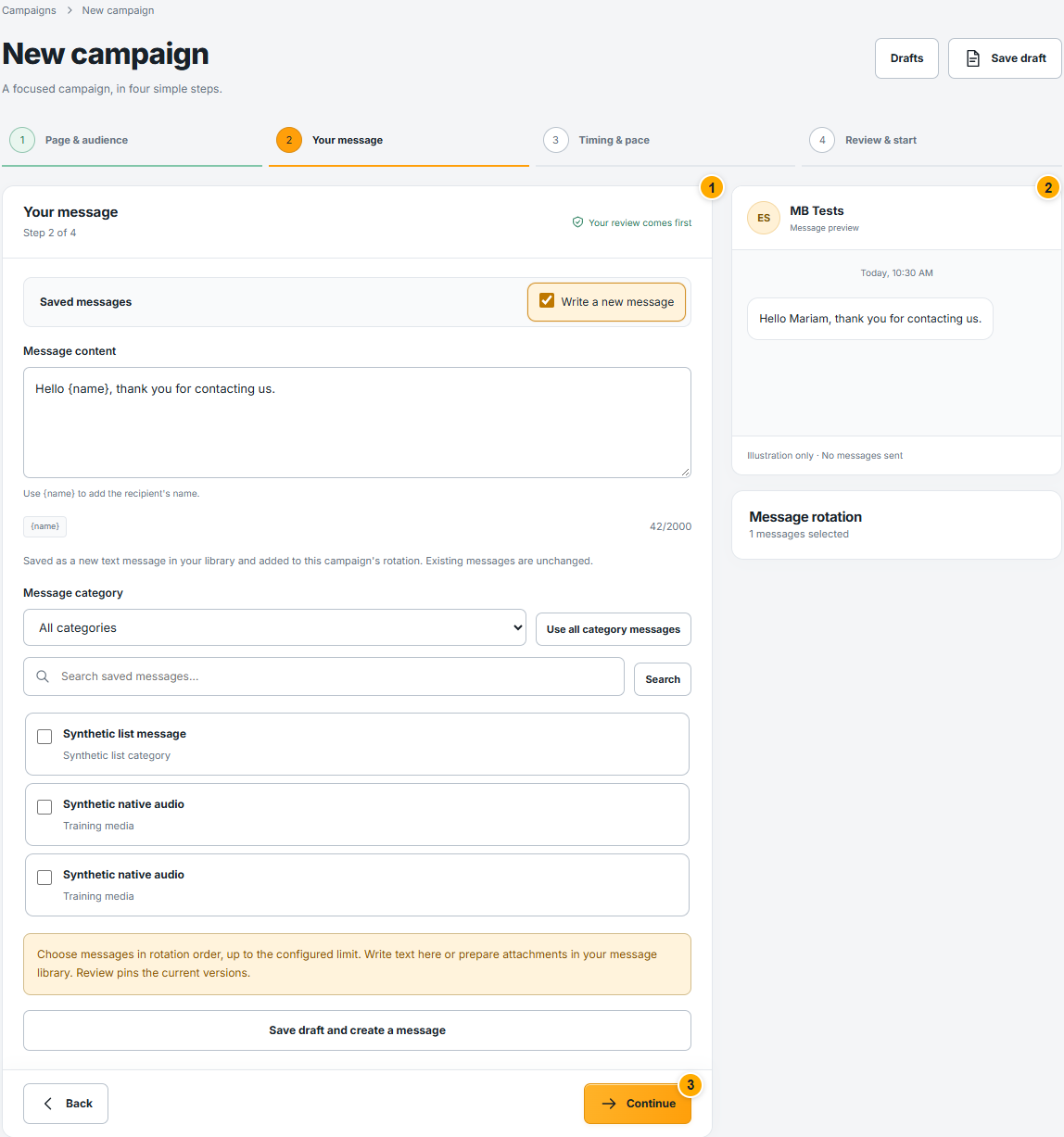
Select your saved message, or enable Write a new message if you want to compose directly here.
- 2
Read the preview and check the attachment and personalization. If several messages are selected, review their displayed rotation order.
- 3
Use Save draft if you need to return later. Continue only after the selected content is correct.
Expected result
The campaign contains the intended message content before timing is chosen.
Set timing and sending pace
 Screenshot from a demo account · Open full size
- 1
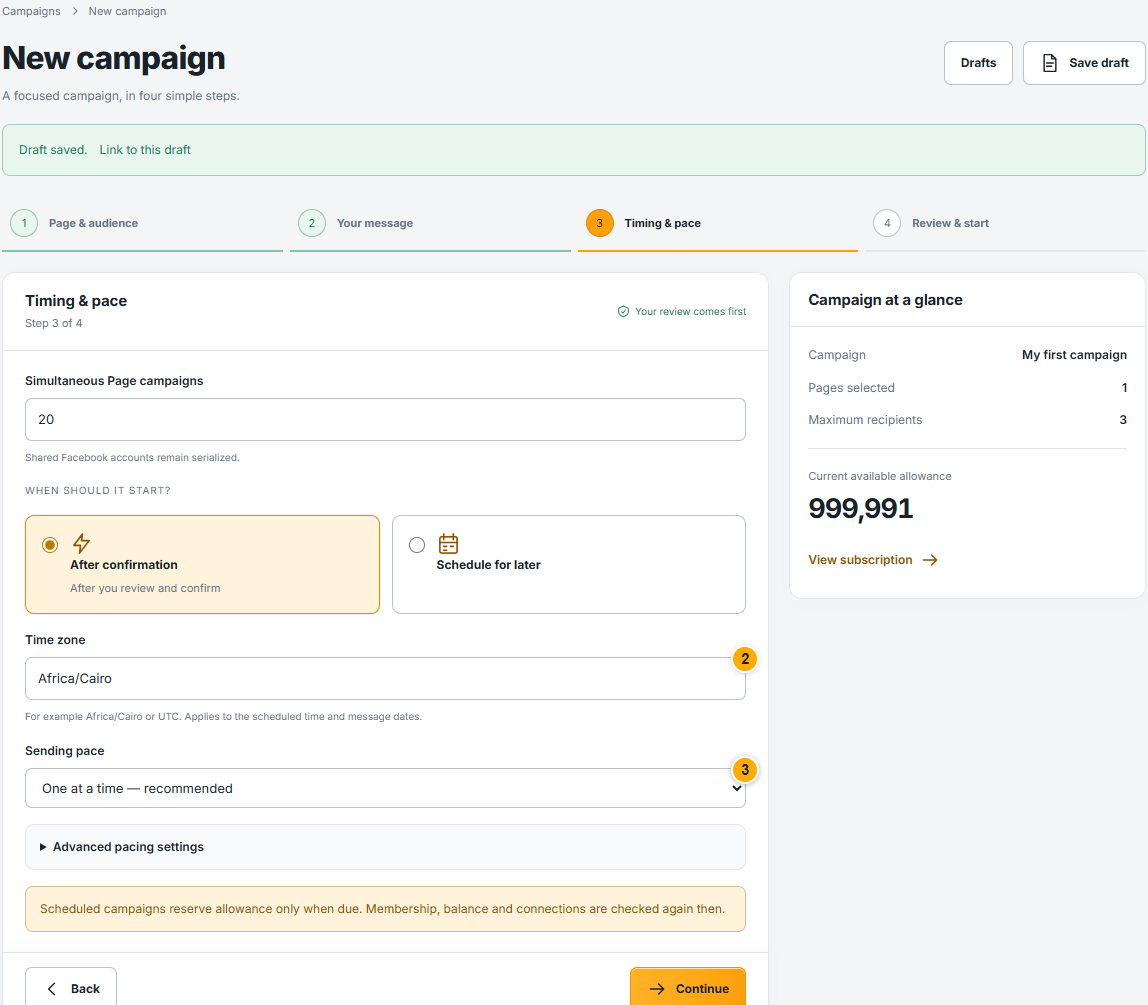
Choose Send now or Schedule for later. Send now still waits for the final review and confirmation.
- 2
For a scheduled campaign, check the date, time and time zone together. The displayed zone affects how your selected time is interpreted.
- 3
Keep the recommended sending pace unless you understand the advanced controls. Review pauses and limits, then continue.
Expected result
The summary shows the intended start time and pace. Scheduling is not confirmation that sending has already happened.
Review and authorize the launch
 Screenshot from a demo account · Open full size
- 1
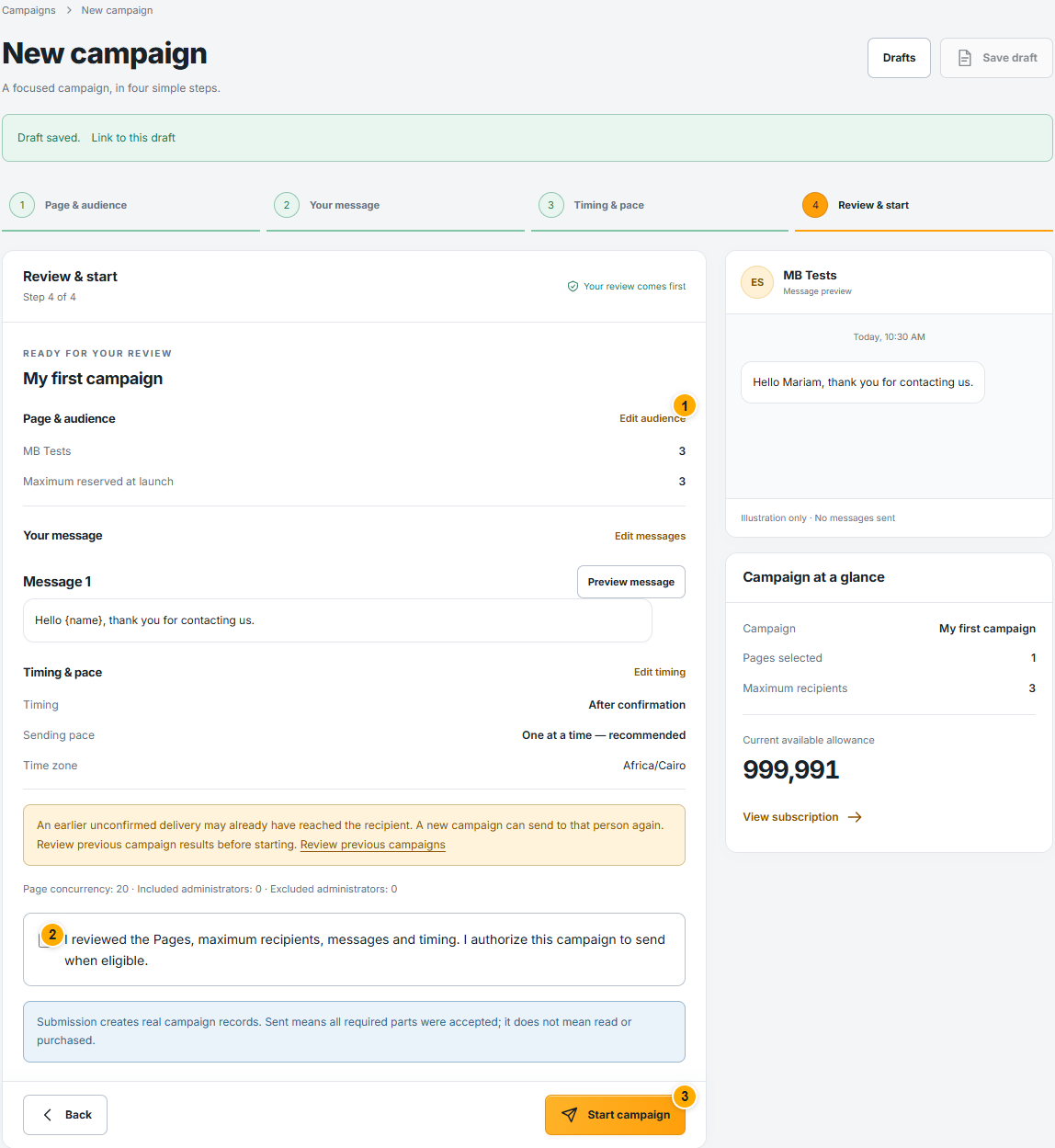
Read the Page list, recipient limits, message preview, time zone and available balance one final time. Use the edit links to correct a section.
- 2
Review any warning about earlier unconfirmed delivery. A new campaign may reach someone again, so inspect previous results before resending.
- 3
Use one edition at a time for each Facebook account. Cloud and Desktop do not coordinate its activity; simultaneous use can repeat deliveries or cause account limits. Check that these accounts are not running in Desktop, select the confirmation checkbox, then press Start campaign once.
Expected result
A campaign group or campaign record is created. Follow its real status; accepted or preparing is not the same as delivered.
Something not working as expected?
- Start unavailable? Check the confirmation box, valid message, Page readiness, recipient limits and current allowance. Follow the specific validation message.
- You lost connection after Start? Open Campaigns and look for the existing campaign or saved draft before submitting again. Do not assume the request failed.