
Prepare your message and attachments
Save reusable content, personalize it and inspect the preview before using it.
Before you start
A clear message relevant to people who already converse with the Page.
Write and personalize a saved message
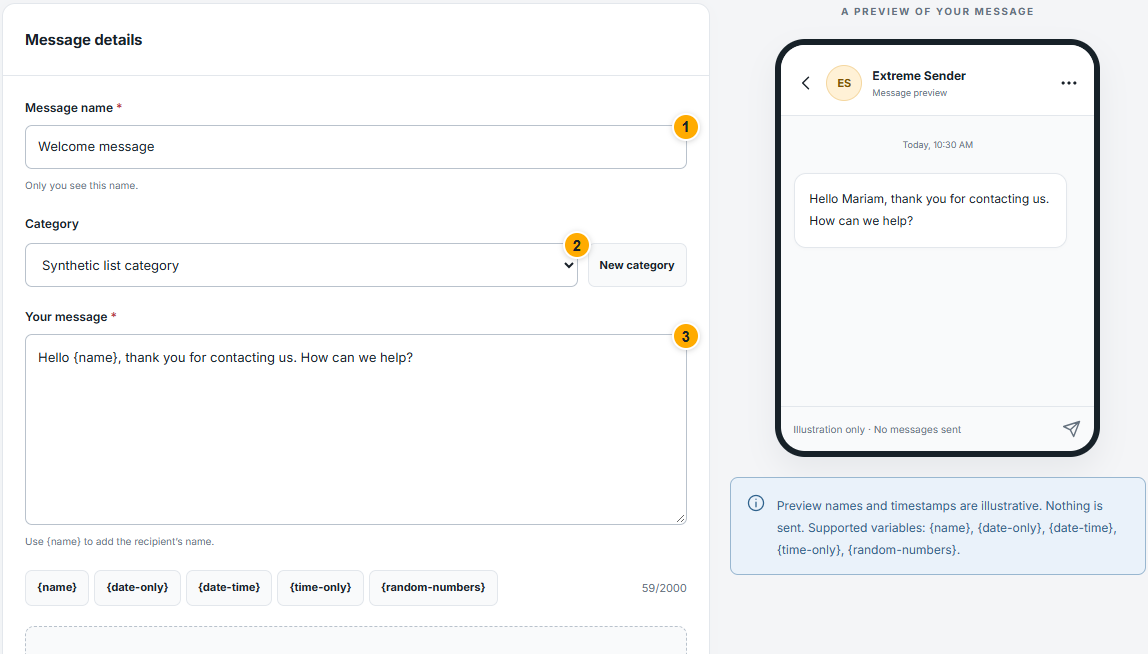 Screenshot from a demo account · Open full size
- 1
Open Message library and choose New message. Give it an internal name that helps you find it; this name is not the message text sent to recipients.
- 2
Choose a category or create one. Write the message content and use the supported personalization controls, such as {name}, where appropriate.
- 3
Review the message preview. Its example name is illustrative, so read the full sentence to make sure it works for real recipients.
Expected result
The text is readable and its personalized preview makes sense.
Add optional media and save
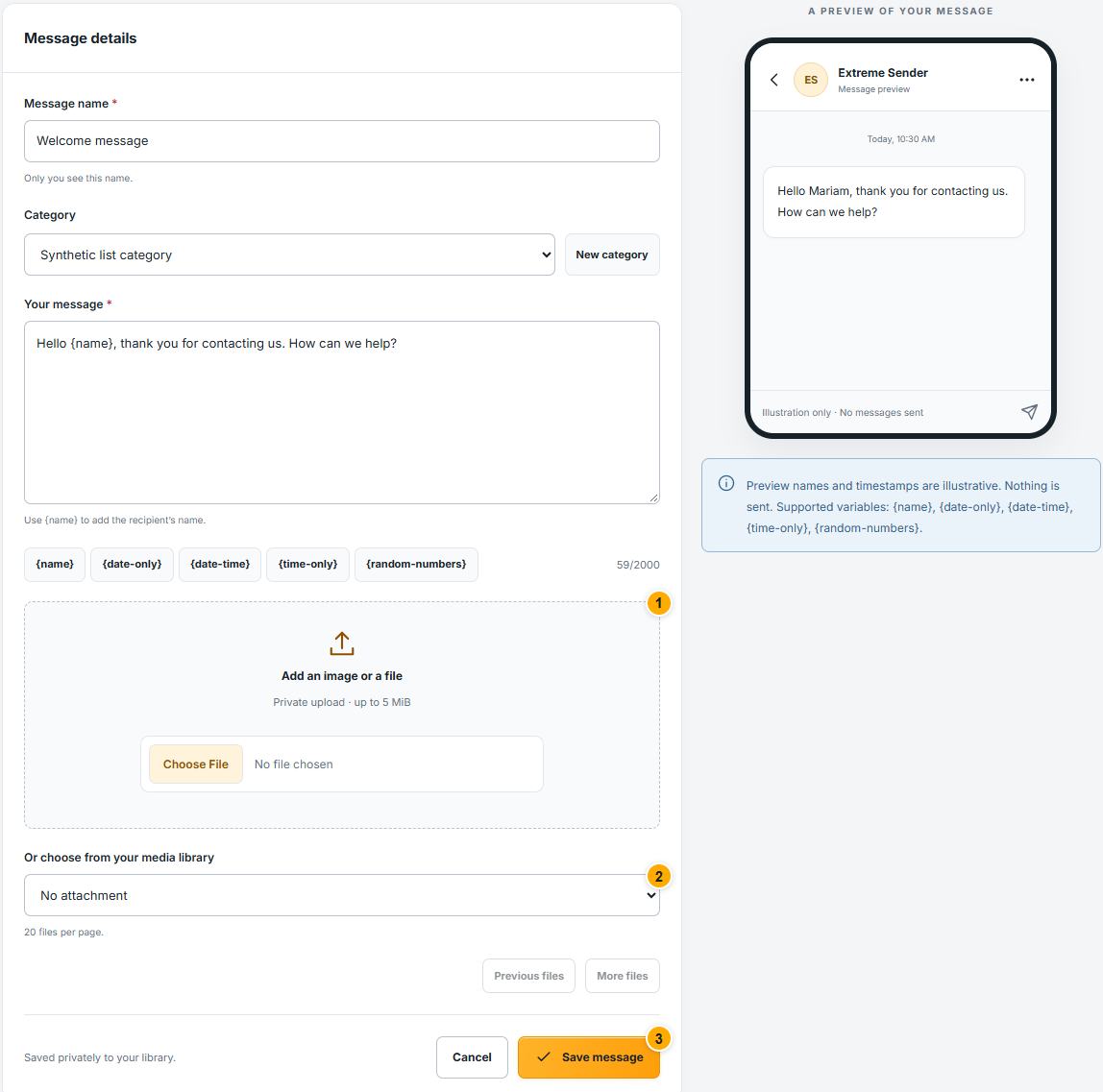 Screenshot from a demo account · Open full size
- 1
Choose an existing file from the media library or upload an allowed file. Follow the file types, size and duration limits displayed by the form.
- 2
Wait for the upload to finish and confirm the selected attachment. A file selected on your computer is not necessarily uploaded yet.
- 3
Save the message, then find it in the library. Reopen it to verify the content and attachment.
Expected result
The saved message is available for selection in a campaign.
Something not working as expected?
- Upload rejected? Check the current allowed type and size, then choose another file or reduce its size. Do not rename an unsupported extension to bypass validation.
- Message missing from selection? Clear category/search filters and check whether it is archived. Confirm that you saved the editor successfully.