
Language, appearance and notifications
Choose Arabic or English and your display preferences.
Before you start
Sign in to your own customer account.
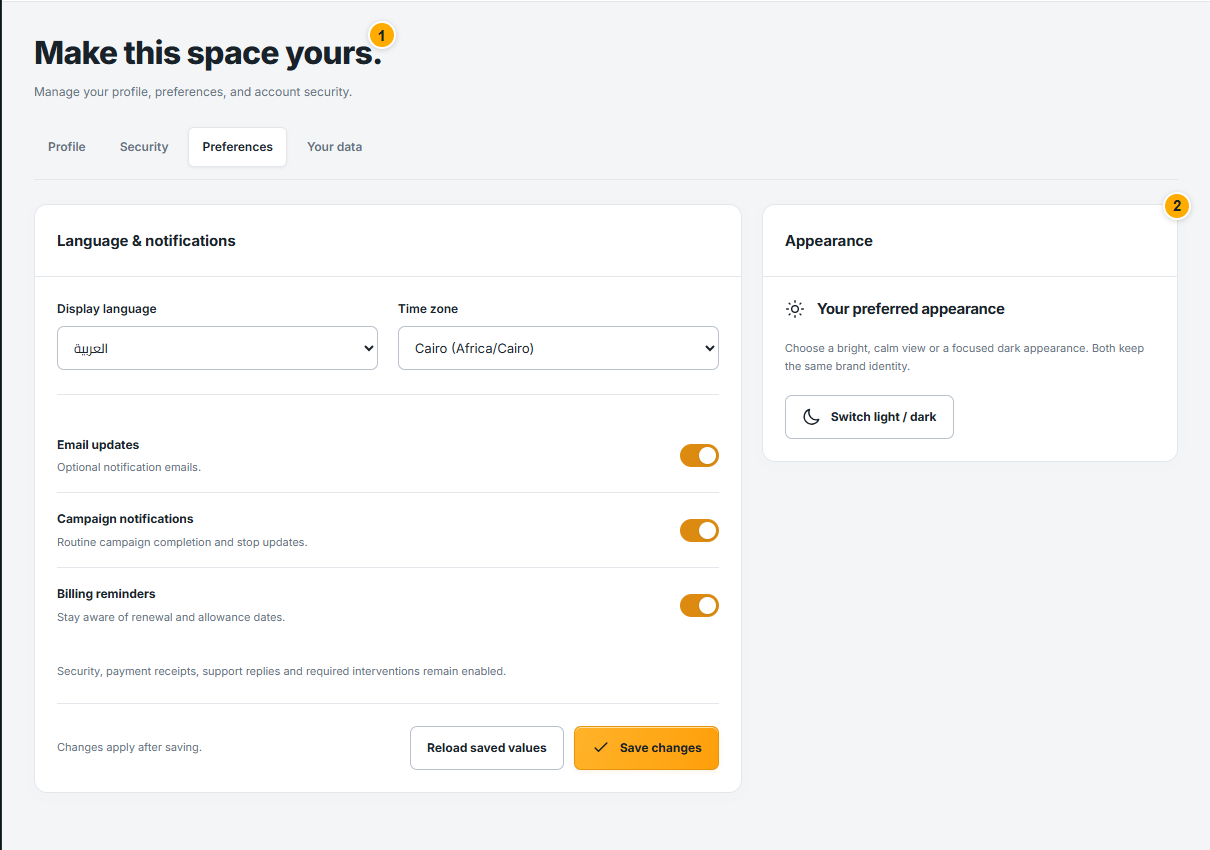 Screenshot from a demo account · Open full size
- 1
Select your display language and time zone. Arabic uses a right-to-left layout; English uses a left-to-right layout.
- 2
Choose optional email, campaign and billing notifications, then Save changes. Security notices, receipts and support replies remain enabled.
- 3
Use Appearance to switch between light and dark mode. Confirm your scheduling time zone separately in the campaign composer.
Expected result
Saved preferences are applied to your customer experience.